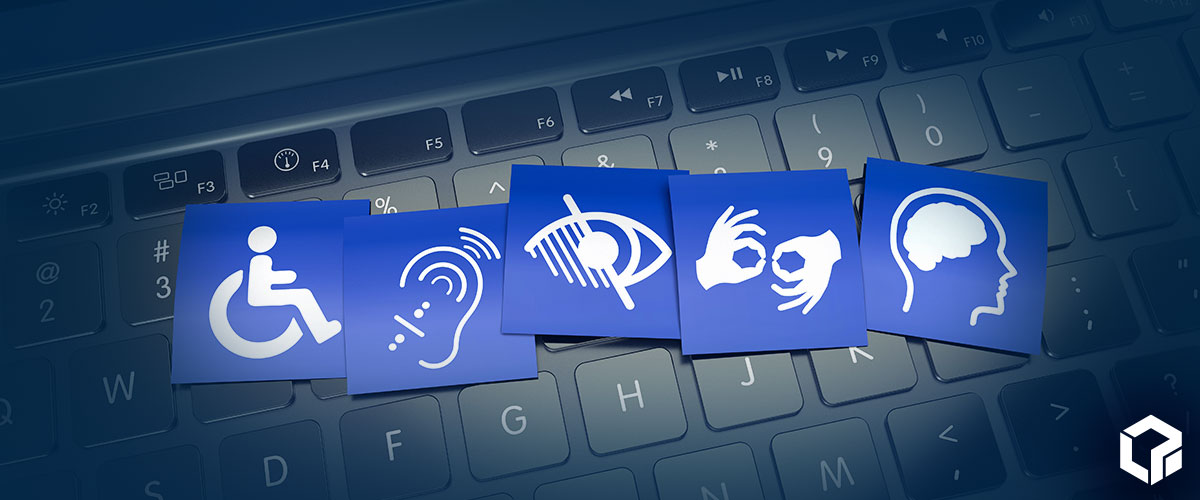
Your email subscribers don’t all experience an email the same way. One person might listen through a screen reader. Another might zoom in until only part of the layout fits on the screen. Someone else may read on a phone while relying on high contrast or dark mode. The possibilities are endless.
Accessibility is an important aspect of email deliverability. While it might not be practical to account for every possibility, when companies design emails with accessibility in mind, they’re much more likely to create an all-inclusive experience. With a stronger approach, businesses can make email marketing more accessible and inclusive for all of their customers.
Accessibility in Email Starts With Removing Barriers
At its core, accessibility in email marketing means reducing the obstacles that keep subscribers from understanding or acting on a message. Those obstacles can be as small as weak contrast or as disruptive as important details trapped inside an image with no useful alt text.
The goal is to make each email easier to read and use for everyone. When brands remove friction from the experience, more subscribers can engage with the message rather than fighting the format. This makes accessibility a practical part of stronger communication, not a separate concern added after building the campaign.
Structure Emails So They Make Sense When Read Differently
A well-structured email provides every reader with a clear path through the message. Headings should signal what each section covers. If a screen reader announces the email from top to bottom, the story should unfold in a sensible order.
This matters most when the design uses columns or image blocks with adjacent text. A layout can look balanced on a desktop but sound confusing when software reads it in a different order. Put the most important message first, then let supporting details build from there.
Links and buttons also need context. Instead of “click here,” use copy that tells readers what will happen, such as “View the spring offer” or “Schedule a consultation.” Descriptive action text helps people decide before they activate a link, even when they don’t see the surrounding design.
Design for Contrast, Color, and Visual Clarity
Visual clarity plays a direct role in improving accessibility and inclusion in email marketing. The text needs sufficient contrast against the background so readers can see it without strain. A narrow font can cause problems. So can pale gray text placed over a busy image.
Color should support meaning, not carry the whole message. A red line around a required field won’t help every reader unless the email also uses clear text. The same logic applies when a chart or alert depends only on color.
Dark mode adds another layer because some inboxes invert or shift colors. A logo may disappear, while a button can lose contrast. In most cases, though, certain text just becomes more difficult to read. That’s why teams should check whether the message stays legible in dark mode, rather than assuming the original design will survive every inbox.
Make Interactive Elements Easier To Use
Calls to action need to stand out so readers can identify them and activate them without extra effort. Even if you make it look unique, a button that sits too close to other links can create problems on mobile.
Spacing matters here because access to action depends on more than persuasive copy. People using touchscreens need enough room to select the intended element. People navigating with assistive tools need labels that clearly match the action.
This doesn’t mean every email needs large buttons everywhere. It just means the next step should feel available to the reader, not hidden inside a design choice. When the action is easy to reach, accessibility and campaign performance work in the same direction.
Consider How Different Devices and Tools Change the Experience
An email can look fine in one environment but a disaster in another. A layout that looks good on a computer might look too small on a phone. On top of that, screen readers may translate visuals into spoken structure well in one area but mess it up in another. As a result, many accessibility problems arise when real-world conditions don’t align with the mockup, long after the initial design approval.
Different tools can also expose issues that weren’t obvious in the design file. On mobile, a two-column layout may stack in a confusing order, while in some inboxes, blocked background images can remove key visual context. For screen reader users, an image-only headline may disappear from the message entirely if the alt text doesn’t explain it.
Testing across tools helps teams catch these problems before subscribers do. It also encourages marketers to think past the perfect preview. Still, the reader’s setup is what determines the final experience.
Before sending your email, test the accessibility on the following devices:
- Mobile: iPhone 17 (Apple Mail), Samsung Galaxy S26 (Gmail), Google Pixel 10, VoiceOver for iOS, and TalkBack for Android.
- Desktop: Apple Mail on macOS, Outlook for Windows (Classic and New), Gmail in Chrome, and Safari, JAWS, and NVDA.
- Tablet: iPad Pro (M5) in portrait and landscape, Samsung Galaxy Tab S10, OnePlus Pad 3, and Microsoft Surface Pro.
- Smartwatches and wearable devices: Apple Watch Series 11, Apple Watch Ultra 3, Google Pixel Watch 4, Samsung Galaxy Watch 8, Garmin fēnix 8 Pro, and Fitbit Versa 4.
- Smart speakers and displays: Amazon Echo (Alexa), Amazon Echo Show, Google Nest Hub (Gemini), and Google Nest Mini.
Inclusive Email Content Goes Beyond Design
Inclusive email content goes beyond whether a button works. The words themselves can make readers feel included or pushed away. Plain language helps because subscribers shouldn’t have to decode jargon before they understand the offer.
Brands should also watch the assumptions built into their phrasing. A message might assume every reader celebrates the same holidays. It might also assume a shared shopping style or a specific level of technical knowledge.
A more inclusive approach speaks with clarity and respect. It explains what matters without sounding stiff. When content feels useful instead of exclusive, more people can see themselves in the communication.
Accessibility Should Be Part of QA, Not an Afterthought
Accessibility is something that should enter the approval process long before a campaign reaches the Send button. Teams can check whether the email still makes sense with images off. They can review dark mode previews before the email leaves the platform. Mobile checks deserve the same attention.
This kind of QA keeps accessibility from becoming a last-minute rescue effort. The review doesn’t need to be complicated, but it does need to happen consistently.
A strong process also helps teams avoid repeating the same mistakes. If a test reveals weak contrast or confusing link copy, that fix should shape future campaigns. Accessibility improves faster when each send teaches the team something useful.
Build Accessibility Into the Email Program Over Time
Accessibility works best as a repeatable standard rather than a one-time cleanup. Teams can build accessible templates, so every campaign starts from a stronger foundation. They can also document email best practices for copy and layout. The same guidance should cover alt text and testing.
This approach helps brands improve without waiting for perfect conditions. A team might begin by fixing contrast issues, then strengthen CTA labeling in the next round. Over time, the email program becomes easier to use because accessibility becomes part of the workflow.
For businesses working with a partner, accessibility can become part of the larger conversation around managed email marketing. Because Logical Position offers this kind of email marketing within a broader digital marketing mix, accessibility can fit into planning without turning every campaign into a separate overhaul. The key is to treat inclusive inboxes as an ongoing practice that helps more subscribers receive the message clearly from day one.